
Why Chrome Says 'Managed by Your Organization' — And When You Should Worry
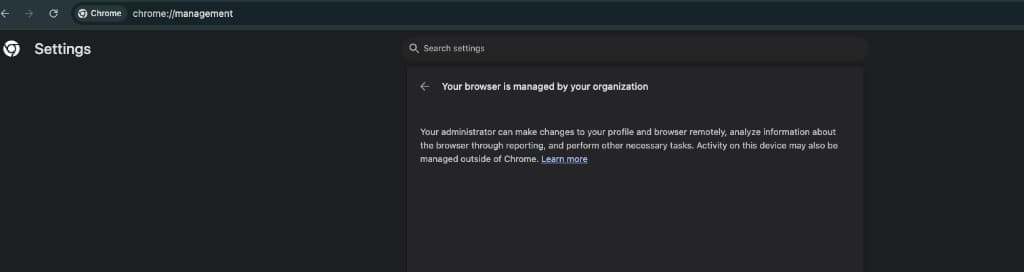
If you open Chrome settings and see a message that your browser is managed by your organization, it's natural to feel uneasy. Many people worry their computer was hacked or someone is watching everything they do.
In most cases, that message has a simple explanation—and it's not always a security emergency. This guide walks through what it means, the most common causes, and when you should take a closer look or ask for help.
Introduction
Chrome shows this notice when something outside your normal browsing—like workplace policies, security software, or a browser extension—applies settings to your browser. You can check it yourself by visiting chrome://management in the address bar.
Good to know
Seeing this message does not automatically mean your computer was compromised. Many legitimate tools trigger it.
What Does “Managed by Your Organization” Mean?
Chrome uses the phrase “managed by your organization” whenever policies are applied to your browser profile. A policy is simply a rule that controls settings—things like which extensions are allowed, your homepage, or whether certain features are turned on or off.
That management can come from several places:
- Your workplace or school IT department (common on work laptops)
- Antivirus or internet security software that includes browser protection
- Password managers or security tools that install a Chrome extension
- Browser extensions that request broad permissions
Important: this does not always mean someone hacked your computer or is spying on you. It often means a trusted tool—or your employer—is configuring Chrome for security or convenience.
Common Causes
Usually legitimate
- Work or school devices enrolled in device management
- Antivirus suites (Norton, McAfee, Avast, Bitdefender, and similar)
- Password managers (1Password, LastPass, Dashlane, and others)
- Corporate security or filtering tools
- Parental control or family safety software
Potentially suspicious
- Extensions you don't remember installing
- “Search helper” or coupon tools you didn't ask for
- Adware or browser hijackers that change settings without clear consent
- Fake “PC cleaner” or “speed booster” extensions
When to dig deeper
If you see the managed message on a personal computer you never set up for work—and you notice odd behavior—it's worth checking your extensions and recent installs.
How to Check Extensions
Extensions are one of the most common reasons Chrome shows this message on home computers. Reviewing them takes only a few minutes.
- Open Chrome.
- Click the three-dot menu (top right) → Extensions → Manage Extensions.
- Or type chrome://extensions in the address bar and press Enter.
Look for extensions you don't recognize, ones you didn't install on purpose, or tools that claim to “fix” your PC or “improve” search results. Check what permissions each extension has—especially access to read and change data on all websites.
If you're unsure about an extension, search its name online or remove it and see whether the managed message and any odd behavior go away. You can always reinstall trusted tools from the official Chrome Web Store.
Warning Signs
The managed message alone isn't always a problem. Combine it with these signs and you should investigate or get professional help:
- Unexpected redirects to websites you didn't open
- Frequent pop-ups or ads on normal sites
- Your homepage changed without your permission
- Your default search engine changed (e.g., to an unfamiliar site)
- Chrome feels much slower than usual
- Spam notifications from sites you never allowed
- New extensions appearing without you installing them
How to Stay Safe
- Install extensions only from trusted developers and the official Chrome Web Store.
- Review extension permissions before you click Add—avoid tools that want more access than they need.
- Remove extensions you no longer use.
- Keep Chrome updated (Settings → About Chrome).
- Use strong, unique passwords and enable two-factor authentication where available.
- On business devices, follow your IT team's policies instead of disabling security tools on your own.
When to Get Help
If your browser behaves strangely, installs extensions without your permission, or you can't remove suspicious software on your own, it may be time for a security check. A local IT partner can help clean up unwanted software, review your setup, and put practical protections in place—without unnecessary jargon.
Visnec Technologies works with Wisconsin small businesses and homeowners who want clear answers and reliable support. Whether it's a one-time cleanup or ongoing managed IT, we're here to help you use technology with confidence.